Use Act-On AI Create to draft copy for your emails directly inside the Email Composer. Powered by OpenAI, it generates content based on your prompt, tone, and campaign goals.
Quick Reference (Advanced Users)
- Where it works: Email Composer (AI Create block) and legacy Rich Text blocks.
- Inputs: Content type, email summary, length, optional tone, intent, company details.
- Outputs: AI-generated copy you can revise, regenerate, or insert.
- Admin control: Legacy composer requires enabling AI integration in Settings.
Try it like this: Give the AI a one-sentence summary (“Invite contacts to our upcoming webinar”), choose a friendly tone, and allow it to generate a first draft for your promo email.
Accessing Act-On AI Create
- Open the email or email template you want to edit, or create a new one.
- In the Design → Content tab, add or select an AI Create content block.
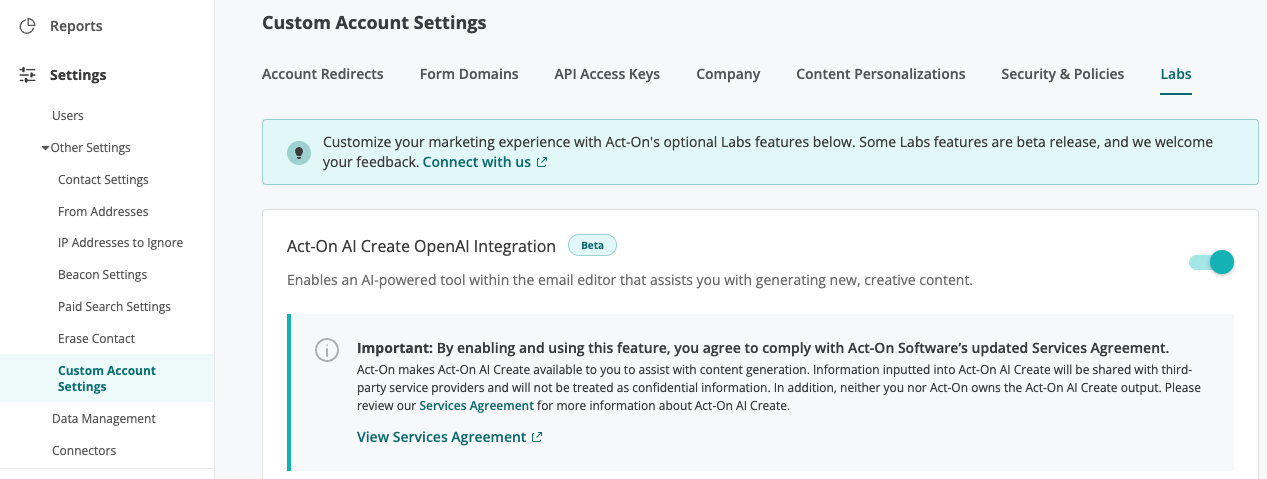
If you don’t see the AI option, an Act-On administrator can enable it in Settings → Other Settings → Custom Account Settings → Labs → Open AI Integration…
Using Act-On AI Create
- In an AI Create block, click Create content. (Legacy composer: click Create with AI in the Rich Text editor.)
-
In the Generate AI Content dialog, complete the required inputs:
- Content type
- Email summary
- Content length
You can also refine the result with:
- Marketing intent
- Tone of voice
- Company name and Company URL
- Include subject line (optional)
Hover over theicons for explanations of each setting.
- Click Create content. Your AI-generated copy appears on the right:
Tip: If the draft isn’t quite right, click Try again. You can adjust any field or regenerate based on the same settings.
- Once you're satisfied, click Insert.
In the Email Composer, the content appears in a Paragraph block, where you can refine it.
Related to