The Global styles tab in the Email and Landing Page Composer gives you a single place to define design settings that apply across your entire message. Using global styles helps keep your layouts consistent and reduces the need to repeat formatting changes on individual rows or content blocks.
General Options
General options control the overall structure, colors, and typography of your design. These settings act as defaults and can be overridden at the row, column, or content block level when needed.
- Content area width: Sets the maximum width of the main content area on larger screens. On smaller devices, the design automatically adapts and this setting is ignored.
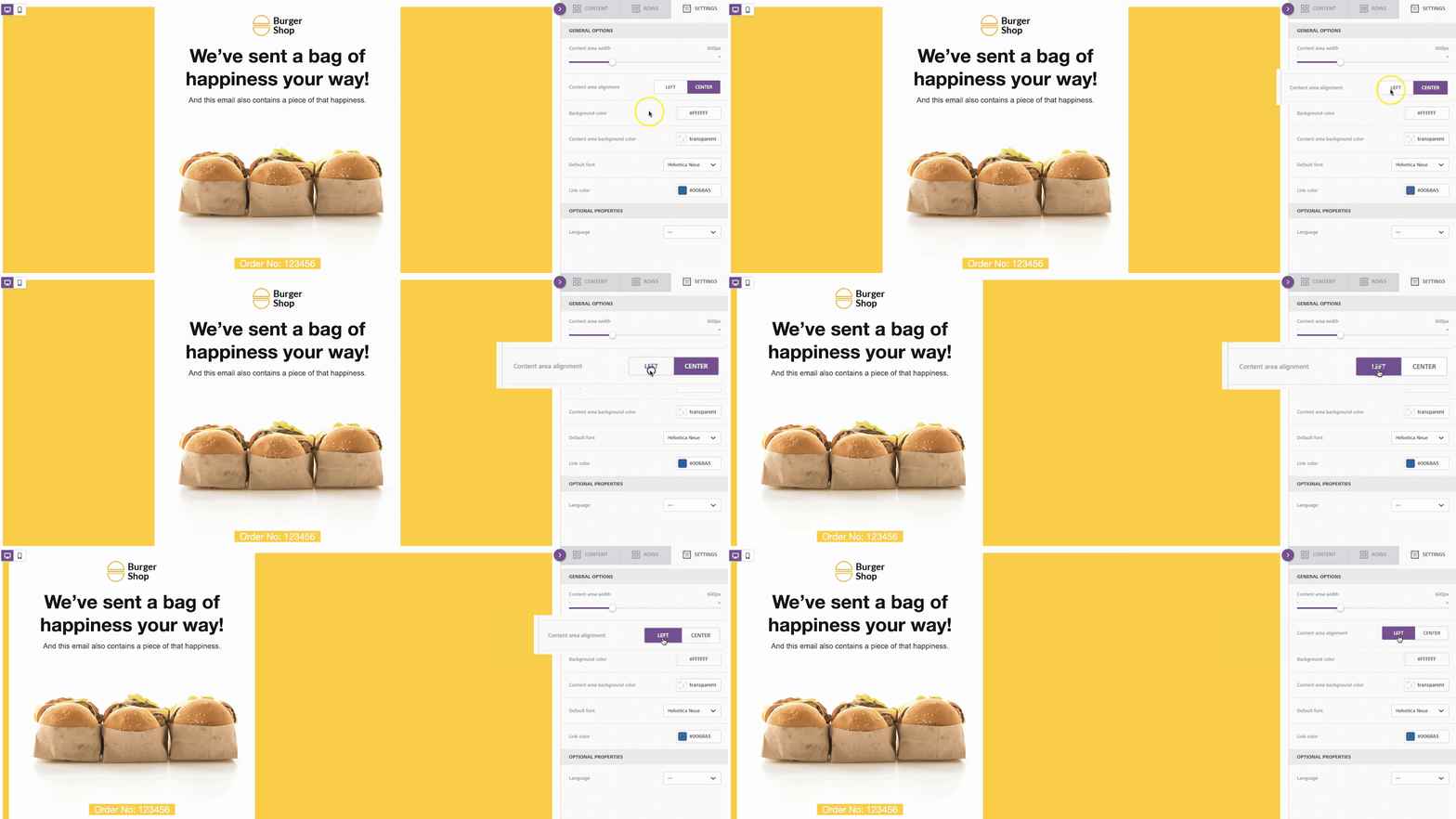
- Content area alignment: Controls how the content area is aligned within the message. By default, content is centered, but you can align it to the left if your design requires it.
- Background color: Defines the default background color for the entire message. This can be overridden at the row, column, or block level.
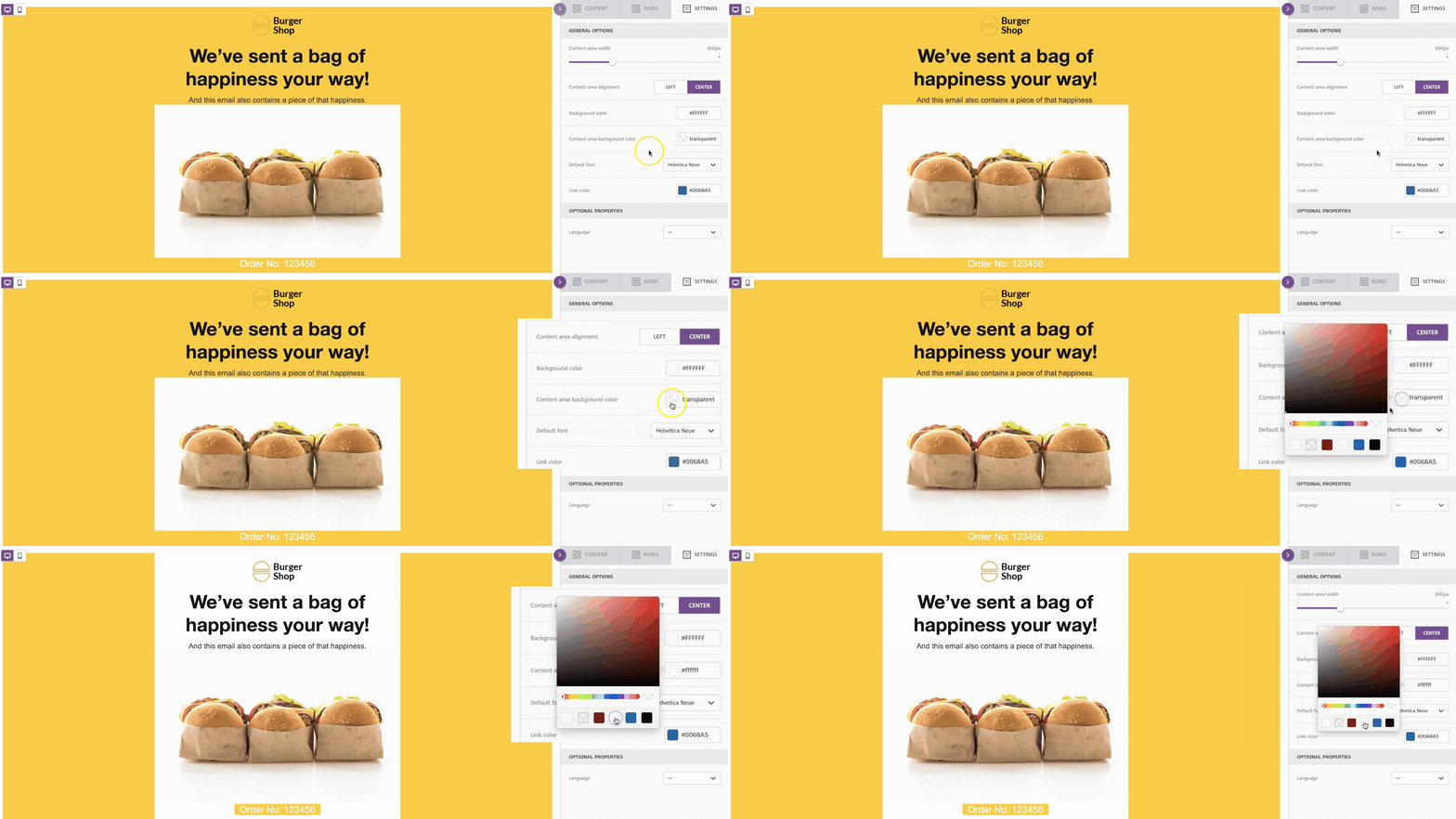
- Content area background color: Sets the background color for the content area itself, allowing it to stand out from the outer background.
- Background image: Select an image to use as the background for your design. Learn more
- Default font: Choose a font family that applies to all text elements by default. You can override this setting on individual content blocks.
- Link color: Defines the default color for hyperlinks throughout your design. Individual links or block
Related to