Outgoing webhooks allow you to send real-time data from Act-On to external systems like Slack, Teams, or custom internal databases.
Important Considerations:
- Channel Limit: Each webhook is limited to 10 individual channels (e.g., 10 specific Form IDs or Program IDs). If you need more, you must create an additional webhook.
- Protocol: Act-On exclusively supports POST HTTP calls.
- Security: If your system uses IP allowlisting, ensure
54.200.92.142is permitted.
Step 1: Create Your Webhook
- Navigate to Settings Connectors Custom Integrations Outgoing Webhooks.
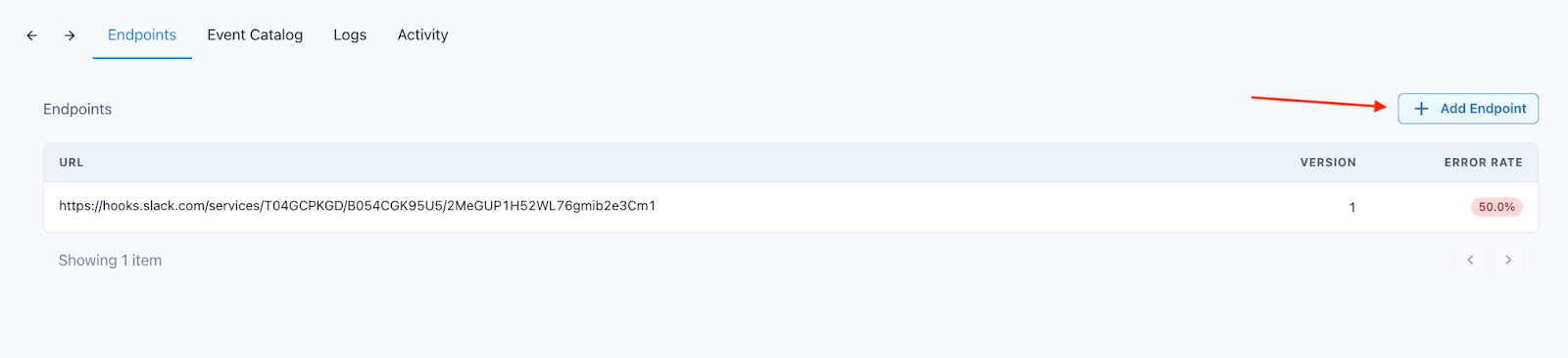
- In the Endpoints tab, click + Add Endpoint.
- Enter Endpoint URL: Paste the target URL provided by your receiving system. Tip: Use "Svix Play" in the setup screen to generate a temporary test URL if you don't have one yet.
- Description: Give your webhook a clear name (e.g., "Slack Lead Notifications").
- Message Filtering: Select your trigger events. Example:
automated-program.started.teams - (Optional) Advanced Configuration: Add custom headers if your receiving system requires a secure token or specific authentication.
Step 2: Test the Connection
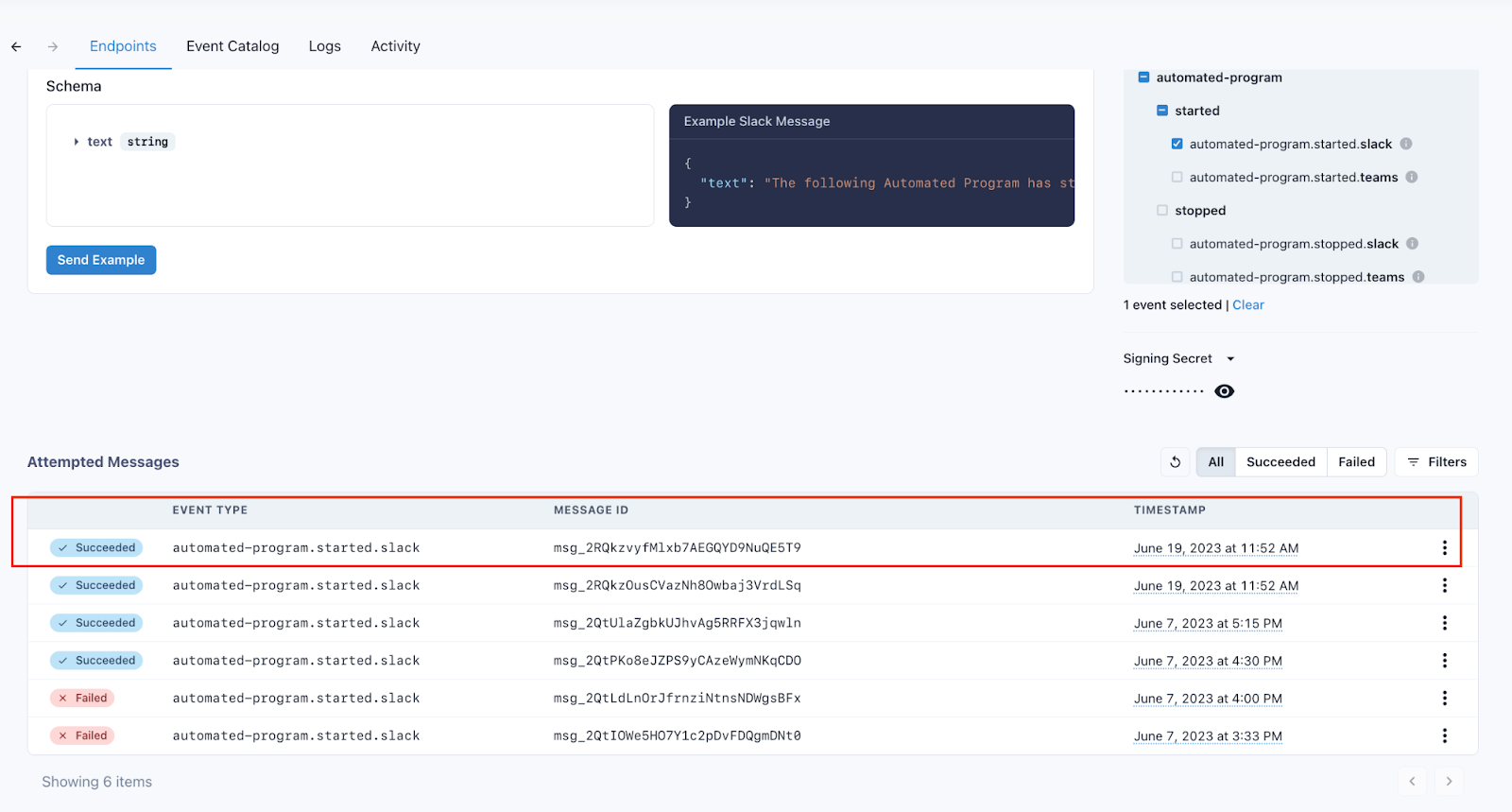
Before going live, use the Testing tab to verify the payload delivers correctly.
- Select a subscribed event to simulate.
- View the result in the Attempted Messages section.
- Check your receiving app (e.g., Slack) for the confirmation message.
Managing & Editing Endpoints
Once created, you can return to Custom Integrations at any time to modify the following:
| Field | Capabilities |
|---|---|
| Endpoint URL & Description | Update the target destination or internal label. |
| Subscribed Events | Add or remove triggers as your needs change. |
| Channels (Limits apply) | Connect specific Forms or Programs. Max 10 per webhook. |
| Advanced Settings | Adjust Custom Headers, HMAC Signatures, or Rate Limits. |
Advanced Security & Limits
HMAC Signature Verification
For enhanced security, use HMAC verification to ensure payloads truly come from Act-On. The Signing Secret is generated automatically during configuration.
Rate Limiting & Throttling
If your receiving server is sensitive to traffic spikes, set a rate limit in the Advanced tab. Note that monthly total limits apply based on your Act-On contract; you will receive email alerts at 90% and 100% usage.
Related to